
Your one-stop guide to exploring the new Foley platform
Welcome to Dash — Foley’s all-in-one platform for hiring, onboarding, and compliance management. Whether you’ve just migrated from the legacy Foley portal or are brand-new to the platform, this guide will walk you through what’s new, what’s familiar, and where to find the tools you use most.
Overview | Alerts | Onboarding| Ordering Screens | Employees | Drug Programs | Insights
Start Here: Take a Guided Tour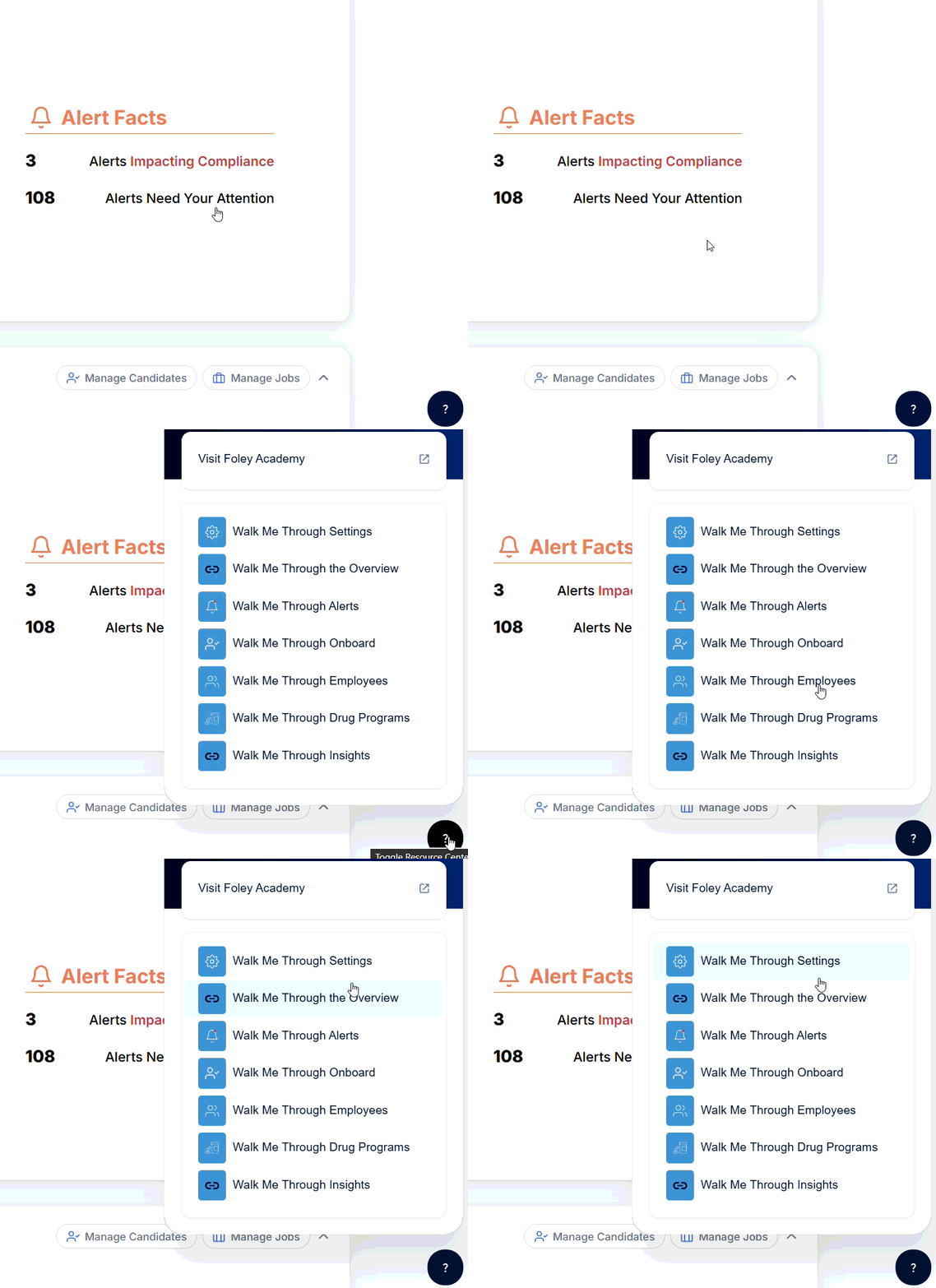
When you first log in, you’ll see an option to launch the in-platform guide (look for the question mark circle at the lower right of your dashboard).
This self-guided walkthrough will help you navigate each major section of Dash — from your compliance score to your hiring pipeline — right inside the platform.
You can revisit the tour anytime from the Help menu or by selecting “Show me around” on your dashboard.
💡Tip: For a limited time, you can return to your legacy portal by clicking the "back to portal" button on the left side navigation.
The Dashboard: Your Compliance Command Center
When you open DASH, you’ll land on your Dash Overview — a snapshot of your company’s compliance health and hiring activity.
Here’s what you’ll see:
Compliance Score: A simple percentage that reflects how many alerts have been addressed in the past week.
Peer Benchmarking: Compare your compliance score against other companies of a similar size to see how you stack up.
Active Alerts: A quick view of what needs attention across driver qualification, MVR monitoring, Clearinghouse, and more.
-
Candidate Pipeline Overview: A visual summary of where your candidates are — from new to hired — with time-to-hire and hire rate averages.
💡 Tip: Clicking any section (like “Manage Alerts” or “View Pipeline”) will take you directly into that part of DASH.
✨ What’s different on the Overview page?
The Overview page is a refreshed version of what you know from Portal — with a few upgrades to make daily work faster.
| Area | Portal | Dash |
|---|---|---|
| Subaccounts | Harder to hop between locations | Easier navigation with account switcher + clearer hierarchy |
| Search | Scoped search in a few places | Global search at the top for employees, candidates, and jobs |
| Getting around | Mostly top navigation | Quick links to common subpages right from Overview |
Key differences you’ll feel:
- Subaccounts are simpler: Jump between locations with fewer clicks; hierarchy is clear and consistent.
- Global search bar: Find employees, candidates, and jobs from a single search at the top.
- Faster navigation: Open common subpages directly from Overview — no need to dig into the side nav if you don’t want to.
Alerts: Stay Ahead of Compliance Issues
The Alerts section helps you track, manage, and resolve compliance tasks before they become risks.
Here’s what to know:
View alerts that impact compliance, don’t impact compliance, or have been completed.
Filter by alert type (like MVR, Drug & Alcohol, or DQ File Maintenance) or by date range.
See an overall compliance score at the top, plus scores for each alert category.
Export reports for audits or internal tracking.
💡 Tip: If you have subaccounts, you can toggle “Include Subaccounts” to view scores across all locations.
🔔 What’s different on the Alerts page?
Alerts now live on their own dedicated page for clearer sorting, faster triage, and tighter connections to employee details.
| Area | Portal | Dash |
|---|---|---|
| Layout | Roll-up mixed alerts, notifications, score | Dedicated Alerts page with focused triage |
| Program view | Limited breakdowns | Program breakdown panel on the right; toggle current vs subaccounts |
| Hierarchy | Roll-up style summary | Hierarchy View (similar to roll-up) for multi-location clarity |
| Sorting & filters | Basic sorting | Similar sorting + clear tabs for Alerts vs Notifications |
| Triage actions | Open item, then handle elsewhere | Handle in place: address, upload docs, correct info, or snooze |
| Workflow speed | One-by-one | Auto-advance to the next item with a single checkbox |
| Reporting | Select export format each time | Download Instantly downloads the data from your current filtered view |
| Score updates | updates as you completed alerts | Compliance Score updates as you complete alerts |
How it’s organized:
- Alerts = items due now. Filter to All or Impacts Compliance.
- Notifications = heads-ups and upcoming items to prevent future alerts.
- Snooze items you’ll handle later — they’ll return on your schedule.
Onboarding (Jobs & Candidates)
What used to be known as Dash Onboarding now lives within the broader Onboarding section of the platform.
Here, you’ll manage both your jobs and your candidates:
Jobs
View all open job postings collecting applications.
Filter by job type (regulated, non-regulated, etc.) or employment type.
Post new jobs and customize descriptions, recruiters, and hiring workflows.
Connect postings to third-party job boards or copy job links for sites like Indeed or LinkedIn.
Candidates
Track candidates from New → Initial Review → Screening → Hired.
See where each candidate sits in the hiring process at a glance.
Open any profile to view application details, disclosures, and screening status.
Send emails or texts directly from the candidate profile (depending on settings).
💡 Tip: The pipeline view makes it easy to identify bottlenecks and keep the process moving — and your dashboard will highlight key metrics automatically.
Pre-hire Screenings for Candidates
Auto-ordering is now an intentional review + order step. You stay in control and keep data clean.
Where to start
From a candidate profile, use Order Next Screens on the Up Next card
or open the Screening tab and select Order Next Screens.
What you’ll do
Confirm the phase’s pre-selected screens. Add optional screens if policy requires.
Review candidate data. Any missing info will be requested by email after you place the order.
For drug tests or physicals, set expirations, pick a panel, and choose a collection site or let the candidate choose.
Review disclosures and consents. Have Foley collect them or indicate you already have them.
Place the order and monitor progress on the Screening tab.
Employees & Compliance Management
Once a candidate is hired, they move into your Employees section — your hub for ongoing compliance.
Employee List
View all current employees and filter by active/inactive status or compliance alerts.
Quickly add new employees manually or import existing ones.
Use the Include Subaccounts toggle for an organization-wide view.
Employee Profile
Each employee’s profile includes:
Personal and job details
Compliance alerts and program enrollments
Screening history and results
Uploaded documents with tags for easy organization
Activity history (uploads, test orders, updates, etc.)
Driver Qualification Files
Every Driver Qualification File (DQF) is automatically built within the employee’s profile, keeping required documentation organized and audit-ready.
👥 What’s different on the Employees page?
The Employees area in Dash gives you a cleaner roster and tighter links to compliance. It is easier to scan, sort, and act.
| Area | Portal | Dash |
|---|---|---|
| Roster view | Active/inactive list with SSN last 4 and program badges. Hard to see the whole team at a glance. | Clear roster with Employee ID, Account/Location, and Compliance Status to spot issues fast. |
| Alerts linkage | Notifications shown, but not tightly synced to the roster. | Synced indicators so you can see who has alerts and jump in with one click. |
| Filtering & sorting | Basic active/inactive toggle. | Similar controls with a cleaner layout that makes results easier to scan. |
| Employee profile | Long scroll. Sections do not fold. | Folder-style tabs: Overview, Programs, Alerts, Screening, Documents, Activity. |
| Take action | Open an employee, then hunt for the right spot. | Do the work where you are with quick links to fix details, upload docs, or view alerts. |
| Add employee | Available. | Available with a cleaner flow that matches the rest of Dash. |
| Move employee between accounts | Button under employee name to choose destination account from a drop-down list. | Use the Actions → Move Account option in any employee profile to select a destination. The list displays your full account hierarchy, with unavailable accounts shown in light gray. You can favorite destinations, preview the move, and confirm before submitting. |
Key differences you will feel:
- At-a-glance compliance: a status column flags who needs attention right now.
- Roster and alerts work together: open a person and act without losing your place.
- Cleaner profiles: everything lives in tabs like a neat folder: Programs, Alerts, Screening, Documents, Activity.
- Account move parity: easily move an employee to another account using Actions → Move Account — now with validation, favorites, and a visual preview before confirming.
Drug & Alcohol Programs
Your Drug Programs tab gives you full visibility into testing, results, and random selections.
Here’s what you can do:
View upcoming tests, target dates, and reasons for testing (random, return-to-duty, etc.).
Order new tests directly from the dashboard and select collection sites by ZIP or city.
Track test status in real time under In Progress or Results tabs.
Export results for audits or download driver cards from your account.
💡 Tip: “Program Actions” in the top-right corner lets you export test results or request paper CCFs.
💊 What’s different in Drug & Alcohol Programs?
The Drug & Alcohol Programs area in Dash is cleaner, filterable, and directly connected to employee data. You can now see everything from orders to results in one organized space.
| Area | Portal | Dash |
|---|---|---|
| Roster | Separate employee lists for Drug & Alcohol, Driver Files, and Occupational Health. | Unified roster that’s filterable by program and easier to read at a glance. |
| Ordering tests | Tests ordered through multiple screens. | Order directly from the Drug Programs roster. Choose the employee, select the test and testing location, and submit in a few clicks. |
| Physical screenings | Located under Occupational Health section. | Now tied to the employee — review or order physicals from the employee’s Screenings tab. |
| Tracking progress | Limited visibility once a test was ordered. | Full lifecycle view: see what’s Up to Order, In Progress, and Completed Results in one tab. |
| Results | Scattered across reports or program pages. | View results right here — no extra navigation needed. |
Key differences you’ll feel:
- Filterable roster: quickly focus on the tests or employees you need to manage.
- One-step ordering: order drug or alcohol tests right from the main view — no hunting for forms.
- Physicals made simpler: order or review them under each employee’s Screening tab.
- End-to-end visibility: track tests from order to result without leaving the page.
Insights: Understand Your Data
If your company has a DOT number, you’ll have access to FMCSA Insights — your analytics hub for compliance and safety trends.
FMCSA Insights Shows your CSA BASIC categories, inspection trends, and crash data.
If your dashboard looks empty, don’t worry — it just means we need to connect your FMCSA portal.
(Reach out to your Foley representative for help setting that up!)
💡 Note: companies without a DOT number or those regulated under a different agency may not see Insights data yet. But stay tuned! We’re continuing to expand this functionality so more customers can access powerful analytics over time.
Comments
Article is closed for comments.