
- Use the Add button on the search bar menu and select Create Job
- Alternatively, select Jobs from the left navigation and click Add Job
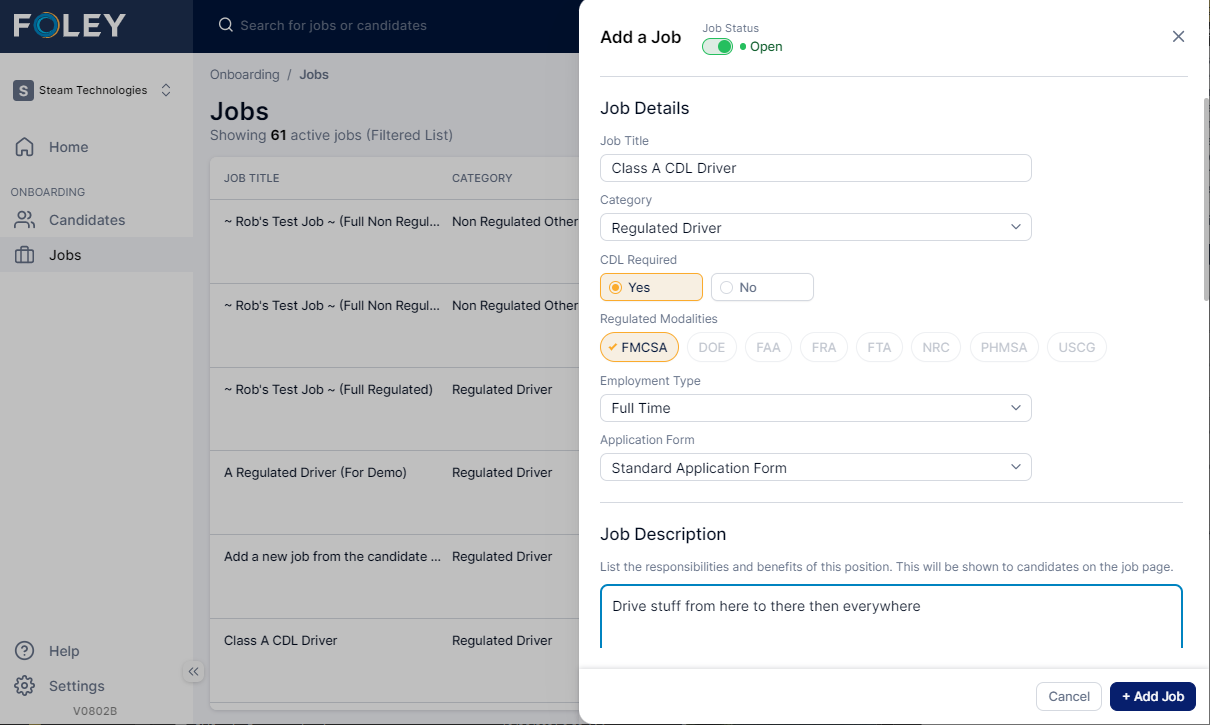
- Complete the form
- Job Title – This will be visible on the application for candidates
- Category – The choice here will influence the available modalities and the choices of application form options you can select from later
- Regulated Driver – driver regulated by FMCSA
- Regulated Safety Sensitive – non-FMCSA-regulated jobs that perform safety-sensitive functions regulated by other agencies
- Non-Regulated Driver
- Non-Regulated Other – any job function that doesn’t fit the other three categories
- CDL Required – Set to Yes to require the CDL on the application
- Regulated Modalities – Select which agencies regulate this job
- Employee Type - Full-time or part-time
- Application Form – This will default to the standard form for the selected category. In a future release, clients will be able to customize these forms
- Job Description – Clients will have the option to display this description or a custom description on each job posting
- Job Qualifications – Client will also have the option here to display this or a custom version on each job posting
- Recruiter – Select the person responsible for recruiting for this job
- Watchlist – Any user added to this list will also get notifications for various events during the application and hiring process based on communication settings.
- Click Add Job
Next: Add a Job Posting
Comments
Article is closed for comments.